
 You can navigate Word and Excel without breaking a sweat. Your email game is solid. But the moment your monitor refuses to turn on, or that USB drive is not showing up on your desktop, you freeze.
You are not alone, and that gap is exactly what most "computer literacy" advice ignores.
Here is the uncomfortable truth: most basic computer skills checklists for office workers cover two areas: software and internet use, and call it a day.
That leaves out a whole third dimension that causes the most daily friction for non-technical professionals: hardware awareness and basic troubleshooting.
This article breaks down what computer literacy actually covers for office work in 2026, with real attention to the hardware piece most guides skip. You do not need to become an IT technician.
You just need enough confidence to handle the small stuff and know when to escalate.
What Computer Literacy Actually Covers (Beyond Word and Email)
When people talk about computer literacy basics for office workers, they usually mean five practical areas:
- Operating system basics: Navigating your desktop, managing windows, and using system settings.
- File and document management: Organising folders, naming conventions, and finding what you saved last week.
- Core software proficiency: In most Singapore offices, this means the Microsoft Office suite and your company's collaboration tools.
- Internet and security hygiene: Safe browsing, spotting phishing emails, and managing passwords.
- Hardware and troubleshooting awareness: Understanding the physical components of your device and handling common issues before calling IT.
Most workplace "computer skills" content stops at the first three or four. Hardware awareness is the one consistently left out. It also happens to be the one that causes the most daily frustration when missing.
The Software and Internet Basics You Have Likely Already Got (Briefly)
If you work in a Singapore office, you probably already handle the following without much thought:
- OS navigation
- File management
- Microsoft Office suite
- Cloud storage tools like SharePoint or Google Drive
You can save a document, find it later, send it via Outlook, and upload it to the cloud. That is genuinely valuable, but it is also the part every other computer literacy article covers.
For deeper dives on the software side, @ASK Training has a complete guide on using Microsoft Office for work that goes well beyond the basics. It is worth bookmarking if you want to push your spreadsheet skills further.
Now, let us talk about the area where most office workers quietly struggle.
The Hardware Blind Spot Most Office Workers Have
Here is what happens in offices every day:
- A monitor goes dark.
- The user checks the power button, sees no light, and immediately raises an IT ticket.
- Two hours later, a support agent walks over, unplugs and replugs the HDMI cable, and everything works.
That is two hours of lost productivity for a 30-second fix. The cause is simply missing vocabulary and confidence.
The real cost is not just the ticket. It is the learned helplessness. Every time you defer a five-second fix to IT, you reinforce the belief that hardware is someone else's domain.
Over months, that pattern of dependency slows you down and clogs up support queues.
The fix starts with vocabulary. You do not need to know how to rebuild a PC, but you should recognise the core components and what they do:
- Motherboard: The main circuit board that connects everything else. If this fails, nothing works.
- CPU (Processor): The "brain" that executes instructions. Slower CPUs mean sluggish performance on heavy tasks.
- RAM: Short-term memory for running programs. Not enough RAM and your system stutters when you have too many tabs open.
- Storage (SSD vs HDD): SSD is fast and silent. HDD is older, slower, and mechanical. If your laptop takes five minutes to boot, it is probably an HDD or a nearly full SSD.
- Ports: USB-A (the classic rectangle), USB-C (the small oval that handles data, video, and power), HDMI (for monitors and projectors), Ethernet (for wired internet).
- Peripherals: Monitor, keyboard, mouse, webcam, and docking stations. These connect via those ports and are often the source of "my setup is not working" issues.
None of this requires an engineering degree. It requires about ten minutes of intentional learning.
Hardware Issues You Can Actually Solve Yourself
This is the part where you stop nodding and start doing. Here are five common scenarios and what you can try before raising a ticket.
1. Laptop will not power on
- Check the charger connection first, at both ends.
- Try a different outlet.
- If the charging light does not come on, the issue might be the charger or the port, not the laptop itself.
- A quick test with a colleague's charger takes thirty seconds.
2. External monitor not detected
- Nine times out of ten, it is the cable.
- Unplug the HDMI or USB-C cable from both the laptop and the monitor.
- Wait ten seconds and plug it back in firmly.
- Check that the monitor's input source matches the port you are using.
- If you are on a dock, try connecting directly to the laptop to isolate the problem.
3. USB device not recognised
- Try a different port first.
- If it works, the original port may be faulty.
- If it does not, test the device on another computer.
- This simple swap tells you whether the problem is the device or your machine.
4. Noticeably slow performance
- Check your storage. If your drive is over 90% full, performance drops.
- Clear temporary files and move large archives to cloud storage or an external drive.
- Check Task Manager (Ctrl+Shift+Esc on Windows) to see what is eating your RAM and CPU.
- Sometimes it is just too many browser tabs.
5. Dock or peripheral connection issues
- Docks are notorious for finicky behaviour.
- Unplug the dock's power, wait, and reconnect everything in sequence: power first, then peripherals, then the laptop.
- Restart the laptop while docked.
- This resets the connection handshake more often than you would expect.
Each of these takes under two minutes. None of them risks damaging anything. And each one you solve builds the confidence to handle the next.
Basic Internet, Email, and Security Hygiene
Hardware is not the only area where small habits prevent big problems. Security hygiene is the other half of genuine computer literacy.
Phishing awareness
- Singapore is a prime target for email and SMS phishing.
- If a message creates urgency ("Your account will be suspended"), asks you to click a link, or requests credentials, treat it as suspicious by default.
- Check the sender's actual email address, not just the display name.
- When in doubt, do not click. Verify through a separate channel.
Password hygiene
- Reusing passwords across work and personal accounts is the single biggest security risk most office workers carry.
- Use a password manager to generate and store unique passwords.
- If your organisation offers single sign-on or two-factor authentication, enable it.
Safe browsing
- Avoid downloading software from unofficial sources.
- Stick to vendor websites and your company's approved tools.
- Public Wi-Fi without a VPN is a risk you do not need to take for work tasks.
Keep software updated
- Updates are not just about new features.
- They patch security holes that attackers actively exploit.
- When your OS or browser prompts an update, do not defer it for weeks.
- The few minutes it takes is cheaper than a breach.
A Quick Self-Assessment
Read through each statement. Be honest. The goal is not to pass; it is to find where you actually need to grow.
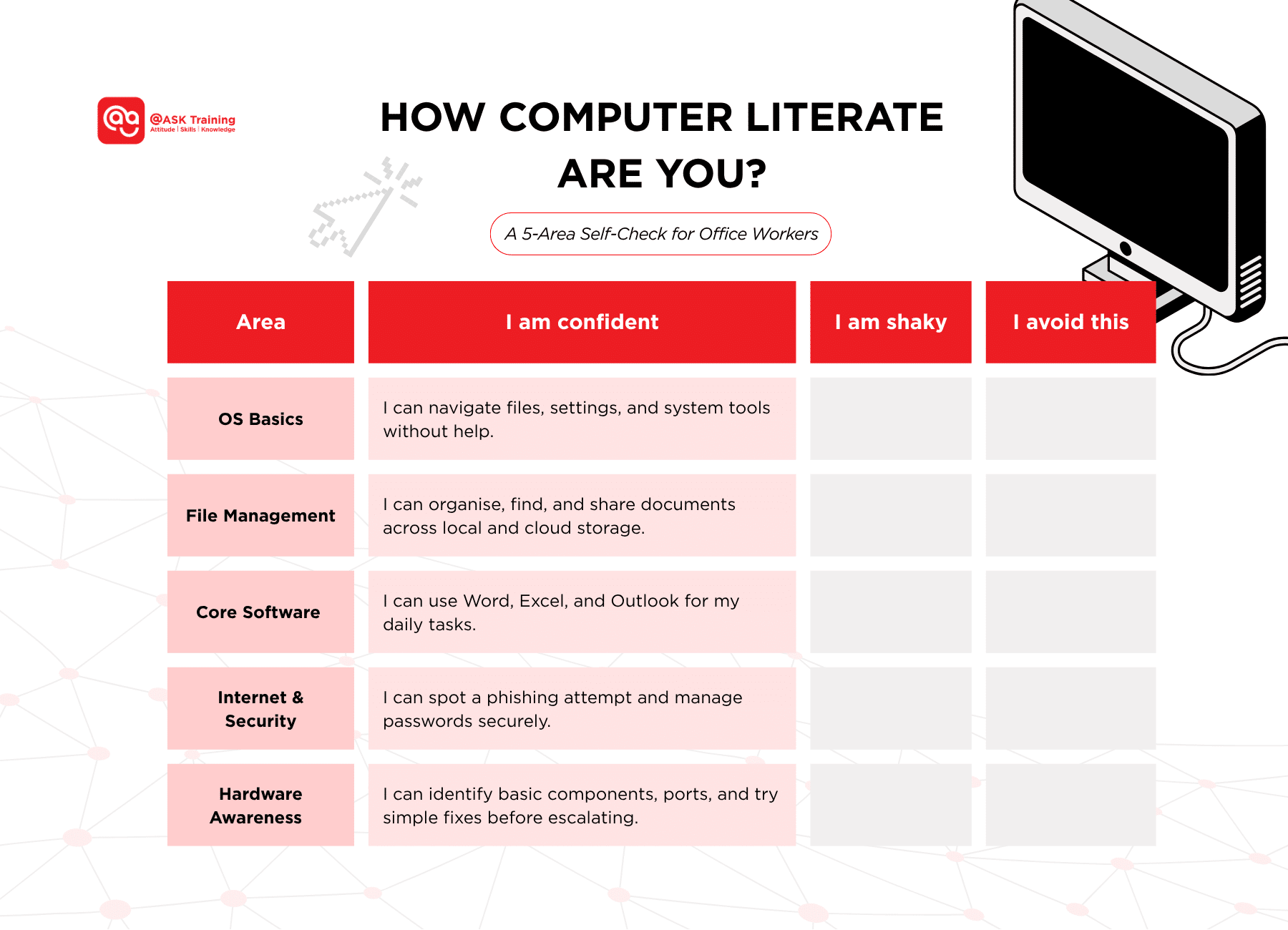
If you marked "shaky" or "avoid" on hardware awareness, you are in the majority. That is not a character flaw. It is just a gap no one taught you to fill.
Three Ways to Build Real Confidence, Not Just Vocabulary
You do not need to become an IT technician. You need to be confident enough not to panic or raise a ticket for something you could fix in two minutes.
Pick the course that matches the gap you found in the self-assessment above.
1. Understanding Computer Hardware & Peripherals
- Best for: Readers whose gap is hardware confidence.
- What you will learn: Hands-on PC assembly and upgrading, BIOS fundamentals, and real troubleshooting practice under guidance. You will learn to identify components, assess compatibility, and diagnose common boot and connection issues.
- Who it is for: Non-technical professionals, office workers, small business owners, and total beginners.
- Format: 3 days (24 hrs), classroom-based, hands-on.
- Funding: Up to 90% SWDA subsidy; SkillsFuture Credit, PSEA, and UTAP claimable.
2. IT Troubleshooting and Problem Solving
- Best for: Readers whose gap is method, not just fixes.
- What you will learn: A systematic approach to diagnosing issues across hardware, software, networks, applications, and security. It teaches root-cause analysis and task prioritisation so you are not just memorising fixes but learning how to think through problems.
- Who it is for: Office workers and small business owners who want a repeatable troubleshooting process.
- Format: 2 days (16 hrs), classroom-based, hands-on.
- Funding: SkillsFuture Credit, PSEA, and UTAP claimable.
3. Operating Systems and Desktop Support
- Best for: Readers whose gap is the OS layer itself.
- What you will learn: How operating systems work, Windows configuration, virtualised environments, and industry best practices. This is for readers who want to understand the "why" behind OS behaviour, not just click through menus.
- Who it is for: Readers who want to go beyond casual literacy into genuine desktop-support-level understanding.
- Format: 3 days (24 hrs), classroom-based, hands-on.
- Funding: SkillsFuture Credit, PSEA, and UTAP claimable.
If you are curious about what is on the other end of the IT tickets you have been raising, @ASK Training's article on common help desk support issues gives you the support-agent perspective. It is useful context for understanding where your ticket actually goes.
Wrapping Up
Real computer literacy for office work covers five areas, not two. The hardware piece is the one most people are quietly missing.
You do not need to rebuild a PC from scratch. You just need to:
- Know what a USB-C port looks like
- Understand what "sluggish performance" might mean
- Try a cable swap before escalating
Try the self-assessment above. Pick one hardware term to actually learn this week, starting with "SSD" or "HDMI." Then try one troubleshooting step from this article the next time something small goes wrong.
If you want structured, hands-on confidence rather than piecemeal fixes, browse the three courses above and pick the one that matches your gap.
You do not need to become an IT specialist. You just need to stop being helpless around the hardware you use every day.
Explore @ASK Training’s IT courses:
- Understanding Computer Hardware & Peripherals
- IT Troubleshooting and Problem Solving
- Operating Systems and Desktop Support
If you’re interested in the career-pivot angle rather than general office confidence, @ASK Training's article on how PC building can fast-track your IT career is worth a read.
Different audience, same hardware foundations.
Related Courses
- (24hrs) Understanding Computer Hardware & Peripherals
- (16hrs) IT Troubleshooting and Problem Solving
- (24hrs) Operating Systems and Desktop Support
- (8hrs) Introduction to Information Technology (IT)
◆◆◆
Related Articles
Article Topics
- What Computer Literacy Actually Covers (Beyond Word and Email)
- The Software and Internet Basics You Have Likely Already Got (Briefly)
- The Hardware Blind Spot Most Office Workers Have
- Hardware Issues You Can Actually Solve Yourself
- Basic Internet, Email, and Security Hygiene
- A Quick Self-Assessment
- Three Ways to Build Real Confidence, Not Just Vocabulary
- Wrapping Up