
When Excel is set up properly, it can support core HR workflows with fewer follow-ups, fewer errors, and clearer operational visibility.
HR managers are able to answer routine questions quickly, maintain consistent records, and produce reliable summaries without rebuilding data each time.
In practice, many HR teams do not experience these benefits. Employee details are tracked across multiple spreadsheets created at different times, recruitment progress is recorded inconsistently and leave or training information is maintained in files owned by different people.
Over time, these spreadsheets drift apart in structure and assumptions, making it increasingly difficult to rely on them.
This article explains how HR managers can use Excel in a more deliberate and sustainable way.
It presents a practical HR template stack, shows how each template should be structured, and explains how to maintain these files so they remain usable as HR operations grow in complexity.
What Excel Is Well Suited for in HR – and Where It Starts to Break Down
Excel is well-suited to HR processes that are structured, repeatable, and relatively stable. Common use cases include:
- Employee records and onboarding tasks.
- Recruitment pipelines and leave tracking.
- Attendance monitoring and training compliance.
These processes involve tabular data with clear definitions, which Excel handles effectively when designed with intent.
In Singapore, HR teams already rely on Excel for statutory workflows such as employment income reporting to IRAS and contribution calculations for CPF Board.
These workflows succeed because they enforce a strict data structure. Applying the same discipline internally allows Excel to function reliably beyond compliance tasks.
Excel begins to struggle when data volumes increase significantly, approvals involve many stakeholders, or sensitive data must be accessed by different groups with different permissions.
In most cases, however, the failure point is not Excel itself but the absence of structure, ownership, and data standards.
Now that we understand Excel’s strengths and limitations, let’s look at the specific tools you need to build a professional HR ecosystem.
The Core HR Excel Templates Teams Rely On Most
Effective HR teams avoid managing everything in a single workbook. Instead, they maintain a small set of focused templates, each with a clearly defined role.
A practical HR Excel stack includes:
- An employee master list
- An onboarding checklist
- A recruitment tracker
- A leave and attendance tracker
- A training matrix
Each template is maintained as a structured Excel table, with consistent identifiers used across all files.
This approach reflects how HR teams actually work and allows information to be summarised without manual reconciliation.
The foundation of this entire stack is your master data, which ensures all other trackers remain accurate.
Employee Master List: Your Employee Database Template Excel
The employee master list underpins all other HR tracking. When this file is poorly maintained, inconsistencies propagate across onboarding, recruitment, leave, and training records.
Employee Master List Template Structure
| Column Name | Description |
| Employee_ID | Unique identifier assigned once and never reused |
| Full_Name | Legal name |
| Department | Standardised department name |
| Job_Title | Standardised role title |
| Manager_ID | Employee_ID of reporting manager |
| Start_Date | Employment start date |
| Employment_Type | Full-time, part-time, or contract |
| Location | Office or work location |
Setup and Maintenance Guidance
Each row must represent exactly one employee. Merged cells and blank rows should be avoided.
Dropdown lists should be used for Department, Job_Title, and Employment_Type to prevent inconsistent entries. Dates must be stored as date values, not text.
Sensitive personal data, such as identification numbers, should be stored in a separate, access-restricted file. This supports basic data protection practices and reduces exposure during audits.
Once your master list is secure, you can use those Employee IDs to power your onboarding process.
Onboarding Checklist Template
Onboarding typically involves HR, line managers, IT, and facilities. Without a structured checklist, task ownership becomes unclear, and steps are easily missed.
Onboarding Checklist Template
| Employee_ID | Phase | Task | Owner | Status |
| E1023 | Pre-start | Prepare laptop | IT | Completed |
| E1023 | Day 1 | HR orientation | HR | Completed |
| E1023 | Week 1 | Manager check-in | Manager | In progress |
| E1023 | Month 1 | Probation review | HR | Not started |
How To Use This Template Effectively
Onboarding phases should be defined upfront and used consistently. Task ownership must be explicit, and status values should be controlled using dropdown lists.
Most organisations benefit from maintaining a single core checklist, with role-specific tasks added only where necessary.
Incorporate timeline control using the task due date, which can be used to extract useful insights such as common overdue tasks and average onboarding completion time.
A smooth onboarding starts with a great hire, which requires a structured way to track candidates.
Recruitment Tracker Excel Template
Recruitment trackers often fail because they mix structured tracking with narrative notes. A usable tracker separates these concerns.
Recruitment Tracker Template Structure
| Role | Candidate_Name | Stage | Source | Interview_Date | Next_Action |
| HR | Tan Mei Ling | Interview | Job board | 12-Mar-2026 | Reference |
| Executive | Ahmad Rizal | Screening | Referral | 14-Mar-2026 | Schedule |
Setup Guidance
Recruitment stages should be defined once and not renamed casually. Candidate source should be selected from a standard list. Interview dates and next actions should be recorded in dedicated fields rather than embedded in comments.
This structure allows HR managers to assess pipeline health, time-to-fill, and source effectiveness without rebuilding the tracker.
Tracking who is coming into the company is vital, but so is managing the time off for those already here, which we’ll explore in the next section.
Leave and Attendance Tracker Template Excel
Leave tracking is primarily operational. HR needs to know who is away, when they are away, and whether staffing coverage is affected.
Leave Tracker Template Structure
| Employee_ID | Leave_Type | Start_Date | End_Date | Days | Approval_Status |
| E1023 | Annual Leave | 18-Mar-2026 | 20-Mar-2026 | 3 | Approved |
| E1041 | Sick Leave | 02-Apr-2026 | 02-Apr-2026 | 1 | Approved |
How reporting emerges naturally
When leave data is structured this way, a PivotTable can be created to summarise total leave days by department and month. No additional formulas or manual adjustments are required.
The same data can also be filtered instantly to answer questions such as who is on leave on a given date.
Attendance tracking follows similar principles and is commonly used in operational environments to meet employment record expectations under the Ministry of Manpower (MOM) guidance.
Operational tracking ensures the business runs daily, while a training matrix ensures your team remains compliant.
Training Matrix Template Excel
Training matrices support compliance and audit readiness by providing clear visibility into completion and expiry status.
Training Matrix Template Structure
| Employee_ID | Role | Training_Name | Status | Completion_Date | Expiry_Date |
| E1023 | Supervisor | Workplace Safety | Completed | 05-Jan-2026 | 05-Jan-2028 |
| E1056 | Technician | First Aid | Expired | 12-Feb-2024 | 12-Feb-2026 |
How This Supports Audits
Because training names, roles, and expiry dates are standardised, HR can quickly produce a summary showing compliant, expired, and missing training. This avoids last-minute data checks when audits or internal reviews occur.
With your templates built, the final step is maintaining high standards of data hygiene and automation.
How to Set Up HR Excel Templates So They Don’t Break
To ensure your Excel templates for HR remain reliable, you must move beyond simple grids and treat your spreadsheets like a structured system.
Follow these four pillars of spreadsheet architecture:
Standardise the Data Model
- Use Excel Tables: Always convert your data ranges into official Excel Tables (Ctrl + T) to ensure consistent column names and automatic formatting.
- Connect with Unique IDs: Use the Employee_ID as the primary key to link your Master List to other trackers like leave or training.
Improve Data Quality
- Implement Dropdowns: Use Data Validation to create dropdown menus for fields like “Department” or “Status” to prevent typos that break your reports.
- Separate Entry from Calculation: Keep your raw data entry on one sheet and your PivotTable summaries or “Calculations” on another to avoid accidental data overwrites.
Make Updates Safe
- Protect Formulas: Lock cells containing complex logic so that users can only edit the necessary input fields.
- Assign Ownership: Every HR tracker in Excel should have a single owner responsible for its accuracy and update cadence.
Reduce Manual Effort
- Automate Summaries: Use PivotTables to generate instant reports on headcount or leave trends without writing a single formula.
- Leverage Power Query: Use Power Query for HR data to clean, transform, and refresh data from external sources (like payroll exports) with one click.
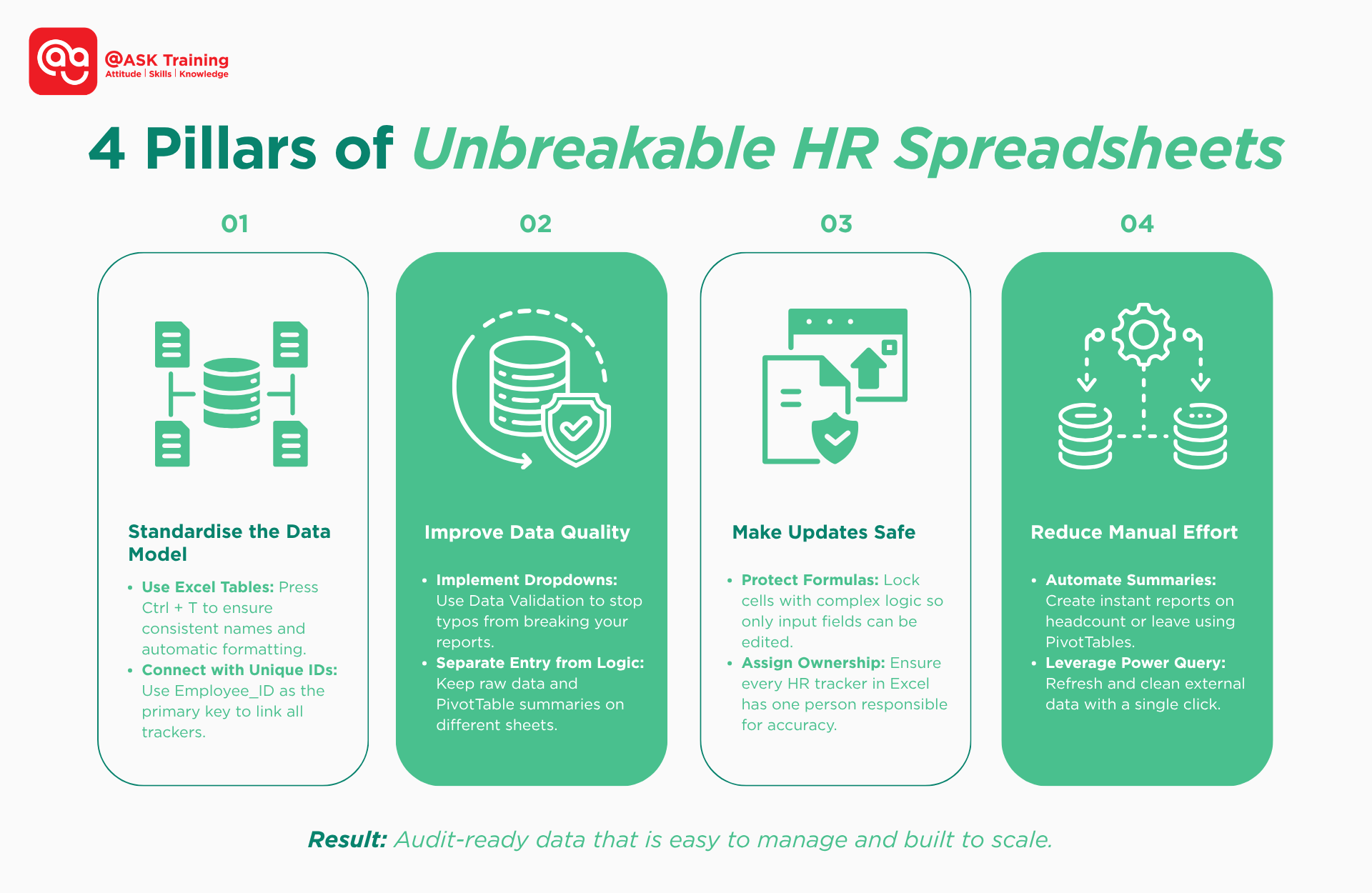
By following these structural rules, you ensure your data remains “audit-ready” and easy to manage.
However, even with the best setup, there are a few common traps you must actively avoid
Common Mistakes That Break HR Spreadsheets
Even with the right templates, certain habits can cause your data to degrade over time.
To keep your HR tracker in Excel functional, you must actively guard against these three categories of failure:
Avoid Structural Problems
- Merged Cells: Never use merged cells in data tables; they prevent sorting, filtering, and the use of PivotTables.
- Inconsistent Date Formats: Ensure all dates are stored as date values, not text, to allow for accurate age or tenure calculations.
- Duplicate Employee Records: Enforce a “one row per employee” rule to prevent inflated headcount reporting.
Avoid Process Problems
- No Clear Owner: Every spreadsheet must have a designated owner to ensure data integrity and security.
- No Update Cadence: Without a regular schedule for updates, spreadsheets quickly “drift” and become unreliable for decision-making.
- Unclear Definitions: Use standardised names for departments and roles so that everyone interprets the data the same way.
Avoid Reporting Problems
- Hard-Coded Totals: Never manually type a “Total” at the bottom of a table; this breaks when new rows are added. Use the “Total Row” feature in Excel Tables instead.
- Manual Copy-Paste Cycles: Avoid the “manual cleanup” trap. If you find yourself repeatedly formatting the same data, use Power Query for HR data to automate the transformation.
- Changing Column Names: Renaming columns casually will break your existing formulas and PivotTables. Choose your headers carefully and stick to them.
By avoiding these common pitfalls, you ensure your templates remain a source of clarity rather than a source of rework.
Wrapping Up: Templates Are Necessary, but Skills Matter More
Using Excel templates for HR provides your team with immediate structure and visibility.
When designed with intent, a small, focused stack of trackers can manage the vast majority of your day-to-day operations without the need for a complex HRIS.
To get started, we recommend focusing on these five core pillars:
- Employee Master List: Your foundation and single source of truth.
- Onboarding Checklist: To ensure a consistent experience for every new hire.
- Recruitment Tracker: To monitor your hiring pipeline and source effectiveness.
- Leave and Attendance Tracker: To manage operational coverage and statutory compliance.
- Training Matrix: To maintain audit readiness and certifications.
However, remember that templates alone are not enough. The true value lies in your ability to structure data, maintain consistency, and build trackers that scale as your organisation grows.
Master your HR Workflows Today
Don’t let manual rework and fragile spreadsheets slow your department down.
Whether you are an individual looking to sharpen your technical edge or an organisation seeking to standardise data hygiene across your department, we can help:
- For Individuals: Elevate your career by mastering everything from basic formulas to advanced automation. Explore our full range of Microsoft Excel Courses to build the skills needed to create reliable, scalable HR trackers.
- For HR Teams: We offer specialised Corporate Training Programmes where our Excel courses can be fully contextualised for your team.
Equip your team with the skills to turn Excel from a source of uncertainty into a source of clear, actionable insights. Enrol with us today!
Related Courses
- WSQ Microsoft Excel Essentials
- WSQ Microsoft Excel Intermediate
- Microsoft Excel Advanced
- Power BI Course – Bridging Big Data Analytics
◆◆◆
Related Articles
Article Topics
- What Excel Is Well Suited for in HR – and Where It Starts to Break Down
- The Core HR Excel Templates Teams Rely On Most
- Employee Master List: Your Employee Database Template Excel
- Onboarding Checklist Template
- Recruitment Tracker Excel Template
- Leave and Attendance Tracker Template Excel
- Training Matrix Template Excel
- How to Set Up HR Excel Templates So They Don’t Break
- Common Mistakes That Break HR Spreadsheets
- Wrapping Up: Templates Are Necessary, but Skills Matter More