
In recent years, more people, whether in Singapore or in general, have become curious about what actually sits inside a computer.
Some want to build a PC, others want to upgrade an old system, and many simply want to understand the device they use every day.
Yet for beginners, computer hardware often feels intimidating because everything is hidden behind a metal or plastic case.
Learning computer hardware basics is a valuable first step.
This guide explains the main parts of a computer in clear, simple terms. You will learn what each component does, how they work together, and why this knowledge helps with maintenance, troubleshooting, and upgrades.
For readers who prefer learning by doing, hands-on workshops or guided PC building courses in Singapore can also be a useful next step.
Let’s begin by breaking down what makes a computer work.
What Are the Main Parts of a Computer and Why They Matter
When people talk about the parts of a computer, they are referring to the physical components that allow the system to accept input, process information, store data, and produce output; the foundation of computer hardware basics.
Each part plays a specific role. If one component is incompatible, poorly installed, or faulty, the entire system can become unstable or stop working altogether.
Understanding these roles is crucial for anyone interested in building a PC for beginners or performing upgrades, as it leads to better decisions and far less frustrating troubleshooting.
A useful way to think about a computer is as a living system. The CPU acts like the brain, the motherboard connects everything like a nervous system, RAM works as a short-term thinking space, and storage keeps long-term information.
When these PC parts work together smoothly, the computer feels fast and reliable, a key goal whether you’re using, maintaining or building your own system.
Now, let’s explore each of these core internal components in detail to understand their individual functions.
The Core Internal Parts of a Computer
Inside a desktop computer are several key components that handle all processing and storage tasks. Understanding these PC parts is essential for anyone looking to build, upgrade, or simply maintain their system effectively.
1. Motherboard
The motherboard is the central platform that connects all hardware. Every major component plugs into it, allowing them to communicate with one another.
Think of it as the foundation of your system; choosing the right one is a critical first step in any build.
2. CPU (Processor)
The CPU, or processor, carries out instructions. It handles calculations, runs applications, and controls overall system behaviour.
In a market with many options, selecting a processor that matches your needs, whether for everyday use, professional work, or gaming, is key to a balanced system.
3. RAM (Memory)
RAM, or memory, stores data that the computer is actively using temporarily. When RAM is insufficient, systems feel slow, especially when multitasking.
For users here managing multiple applications, from productivity tools to creative software, adequate RAM is non-negotiable for a smooth experience.
4. Storage (NVMe/SSD/HDD)
Storage, whether a Non-Volatile Memory Express (NVMe) drive, a solid-state drive (SSD), or a traditional hard disk drive (HDD), holds your files, software, and operating system.
Faster storage, such as NVMe or SSD, dramatically improves boot times, application loading, search speeds, and overall system responsiveness.
Upgrading to an NVMe or SSD is one of the most impactful changes you can make to revitalise an older computer.
5. Graphics Card (GPU)
The graphics card, or GPU, handles rendering and processing of visual output. It is essential for demanding tasks such as gaming, video editing, and design work, while basic systems can rely on integrated graphics built into the processor.
For enthusiasts and professionals, investing in a capable GPU unlocks higher performance in visuals and rendering.
6. Power Supply (PSU)
The power supply delivers electricity safely and consistently to all components. A poor-quality power supply can cause instability or hardware damage.
It’s crucial not to overlook this component, as a reliable power supply protects your entire investment.
7. Cooling Systems
Cooling systems, such as fans, heatsinks, and increasingly common liquid coolers, are essential for managing your computer’s temperature. Without proper cooling, even powerful systems will slow down or shut down to protect themselves.
In our tropical climate, ensuring efficient airflow and cooling is especially important to maintain system longevity and stable performance.
Here’s a visual representation of the core internal parts of a computer:
Now that we’ve explored what’s inside the computer, let’s look at the devices we use to interact with it every day.
Input, Output, and Peripheral Devices
While internal components are the computer’s engine, peripheral devices are the tools that allow people to interact with a computer.
They sit outside the main system but are essential for everyday use, transforming your PC from a mere processing unit into a complete workstation or entertainment hub.
1. Input Devices
These are your primary control tools. Keyboards, mice, webcams, and microphones all send information into the computer.
Whether you’re typing a document, navigating software, or joining a video call, these are your direct interface with the digital world.
2. Output Devices
These components deliver the results of your computer’s processing back to you. Monitors, speakers, and printers display visuals, produce sound, or create physical copies of your digital work.
Your choice of output device, like a high-refresh-rate monitor for gaming or a colour-accurate screen for design, directly shapes your user experience.
3. External Peripherals and Connectivity
External peripherals like USB drives, hubs, and docking stations significantly expand what your computer can do, adding storage, extra ports, or laptop functionality. These tools rely entirely on your system’s ports and connectors.
Understanding which ports your computer has, and the difference between USB, HDMI, audio, and power connections is invaluable for setting up a clean workstation, adding new accessories without frustration, and quickly troubleshooting common connection issues.
Today, USB-C is becoming the universal standard, capable of handling data transfer, video output, and power delivery through a single, reversible cable; simplifying your setup and reducing clutter.
But how do all these parts, both internal and external, communicate to complete a task?
Let’s trace the journey of a simple command.
How Computer Parts Work Together
A computer works as a system, not as individual parts operating independently. Understanding this teamwork is at the heart of understanding computer hardware and is crucial for effective troubleshooting and building.
The Journey of a Simple Command
Let’s trace what happens from input to output:
- Input: You click a mouse or type on a keyboard.
- Processing: The signal travels to the CPU (processor).
- Temporary Storage: The CPU uses RAM to hold active data while working.
- Long-term Storage: If needed, data is retrieved from or saved to your storage drive (HDD/SSD).
- Output Processing: If the task involves visuals, the result is sent to the graphics system (GPU) for rendering before being shown on the monitor.
- Output: The final image appears on your screen, or sound plays through speakers.
The Critical Startup Process
Before any data can flow, your computer must pass a vital self-check. Here’s what happens during startup:
- POST (Power-On Self-Test): The system’s firmware, BIOS or its modern counterpart, UEFI, immediately checks that essential hardware like the CPU, RAM, and motherboard is correctly connected and functional.
- Boot Sequence: Only after the POST succeeds does the system proceed to locate and load the operating system from your storage drive (SSD or HDD).
This foundational verification ensures your PC is stable and ready from the moment you press the power button.
Why This Knowledge Matters for Troubleshooting
Understanding this flow helps you diagnose problems logically rather than guessing. For example:
- Symptom: Computer powers on but shows no display.
- Likely Issue: The graphics card, its connection, or the monitor, not the entire system.
- Action: Check monitor cables and GPU seating before assuming worse problems.
This methodical approach is exactly the kind of practical skill developed in hands-on PC building workshops, where theory becomes tangible experience.
Ready to apply this knowledge? Let’s look at practical steps for assembling or improving your own system.
Building or Upgrading a Computer – What Beginners Should Know
Building or upgrading a computer does not require expert knowledge, but it does require preparation and a methodical approach.
For beginners in Singapore looking to dive into PC building, focusing on a few key principles will ensure a successful and rewarding experience.
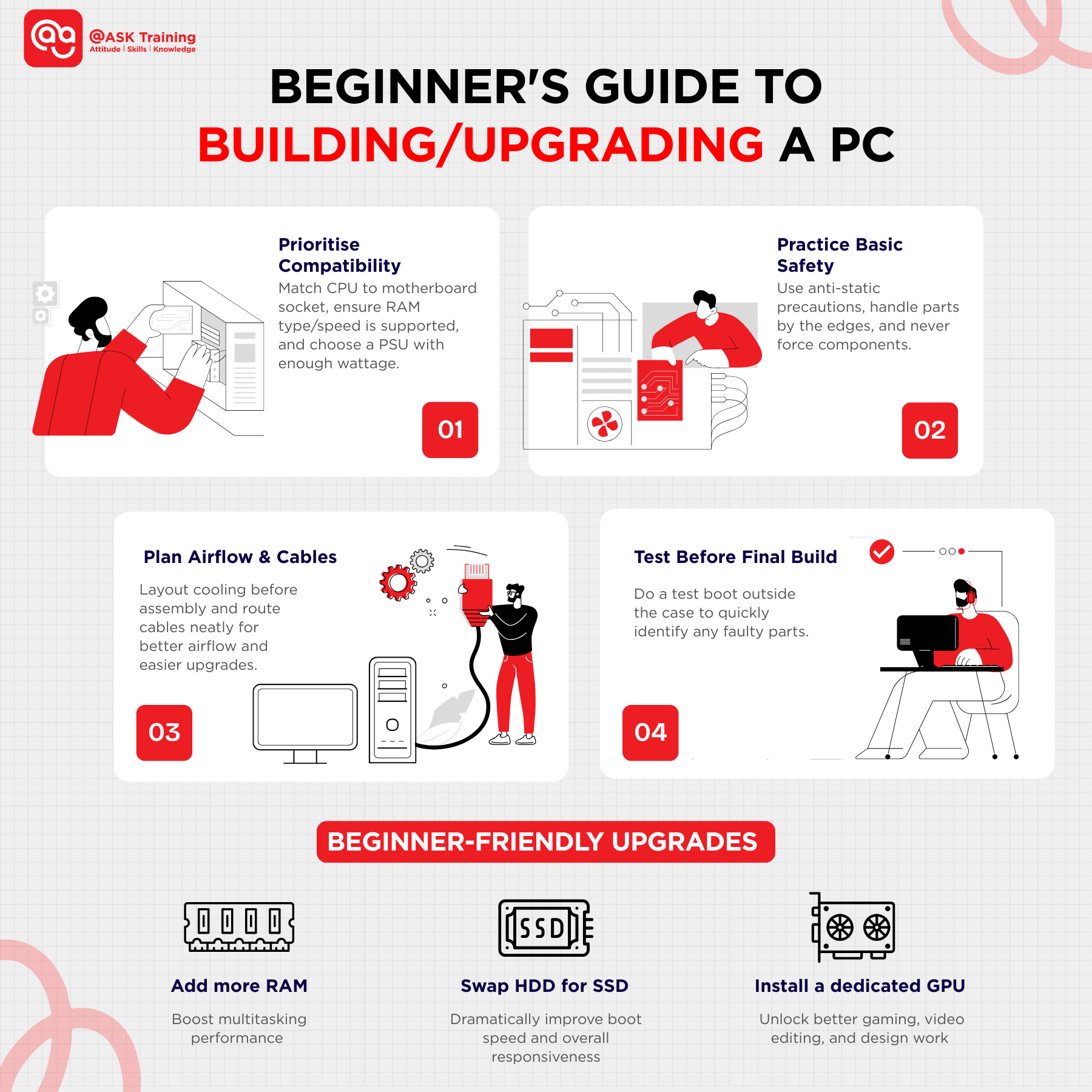
1. Prioritise Compatibility
This is the most critical rule. Components must work together seamlessly:
- Your CPU must physically and electronically match your motherboard’s socket and chipset.
- Your RAM must be the correct type (e.g., DDR4/DDR5) and speed supported by both the motherboard and CPU.
- Your power supply (PSU) must deliver enough wattage with the proper connectors for all components, especially a dedicated GPU.
2. Practise Basic Safety
Handle components with care and awareness to prevent costly damage:
- Anti-Static Precautions: Ideally, use an anti-static wrist strap. If you don’t have one, frequently touch a grounded metal object (like the power supply case) to safely discharge static electricity.
- Gentle Handling: Always hold components like the CPU, motherboard, and RAM by their edges, avoiding contact with pins, circuits, or gold contacts.
- No Force Required: Components should seat smoothly. If you meet resistance, realign and try again; never force a part into its slot or socket.
3. Plan for Airflow and Cable Management
A clean build is a cool and upgrade-friendly build:
- Plan your cooling system layout (intake and exhaust fans) before securing components.
- Route cables neatly along chassis pathways. This improves airflow for better cooling and makes accessing parts for future upgrades much simpler.
4. Test Before Final Assembly
Save time and frustration with a pre-build check:
- Assemble core components (CPU, RAM, GPU, storage) on a non-conductive surface (like the motherboard box) and perform a test boot before installing them in the case.
- This helps isolate a faulty part immediately.
Beginner-Friendly Upgrade Paths
You don’t need to build a whole new system to see significant gains. Start with these impactful upgrades:
- Adding more RAM: The simplest way to improve multitasking.
- Replacing an HDD with an SSD: The single biggest upgrade for overall system responsiveness, reducing boot and load times dramatically.
- Installing a dedicated Graphics Card (GPU): Unlocks modern gaming, smooth video editing, and faster design rendering.
These targeted changes allow you to learn the process while breathing new life into an existing computer.
Even with good preparation, beginners often encounter a few common hurdles. Knowing what to avoid can save you time and components.
Common Mistakes When Handling Computer Parts
Even with careful planning, beginners often make similar mistakes when building or upgrading.
Recognising these common mistakes beforehand makes them easy to avoid, saving you time, money and frustration.
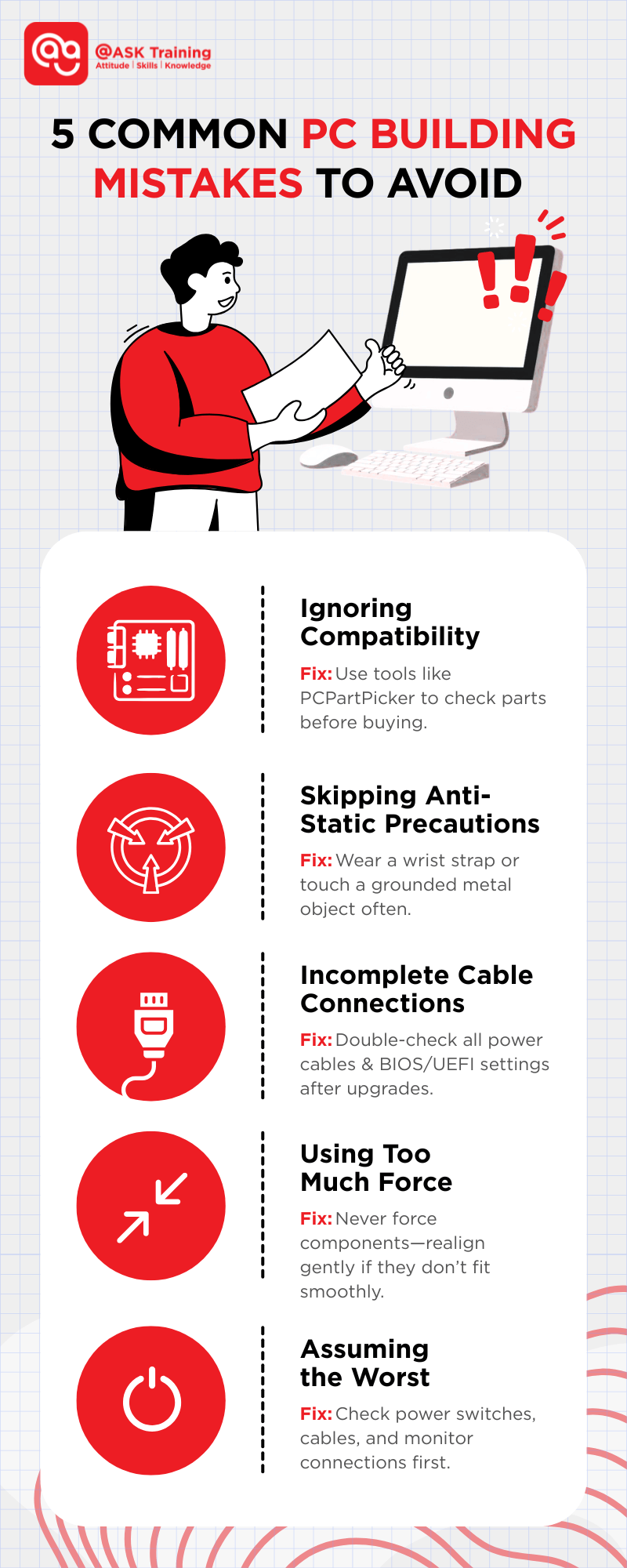
Mistake 1: Ignoring Compatibility
- The Error: Choosing parts that don’t work together, like a CPU that doesn’t fit the motherboard socket or unsupported RAM.
- The Fix: Always cross-reference specifications using tools like PCPartPicker or manufacturer QVL (Qualified Vendor Lists) before purchasing.
Mistake 2: Neglecting Anti-Static Precautions
- The Error: Handling sensitive components like the CPU, RAM, or motherboard without grounding yourself first.
- The Fix: Always use an anti-static wrist strap. If you don’t have one, frequently touch a grounded metal object (like the power supply case) while working.
Mistake 3: Incomplete Connections
- The Error: Forgetting to plug in all necessary power cables (CPU, motherboard, GPU) or not configuring the BIOS/UEFI after a major upgrade.
- The Fix: Double-check every connection from your PSU. After installing new hardware, enter the BIOS to ensure settings like RAM speed (XMP/DOCP) are enabled where supported.
Mistake 4: Using Excessive Force
- The Error: Forcing a component, like RAM or a GPU, into its slot.
- The Fix: Components should seat smoothly. If you meet resistance, realign it carefully. Ensure the slot’s retention clip is open for RAM, or the PCIe latch is released for a GPU.
Mistake 5: Jumping to Worst-Case Conclusions
- The Error: Assuming a major component is dead when the computer won’t power on or display an image.
- The Fix: Perform basic troubleshooting first: check that the PSU switch and wall outlet are on, reseat all power cables, and verify monitor connections.
Now that you know what pitfalls to avoid, where can you go to keep building your skills and confidence?
Continue Learning About Computer Hardware
Understanding computer hardware is a skill that grows with every build, every upgrade, and every “aha!” moment.
Your journey from curious beginner to confident builder starts with a single step: keep learning!
Self-Directed Learning Paths
Many enthusiasts start by exploring at their own pace:
- Online Tutorials: Dive into video guides on platforms like YouTube, where visual learners can watch builds come to life.
- Technical Forums: Join communities where real builders share tips, troubleshoot together, and celebrate successful builds.
- Step-by-Step Build Guides: Follow detailed walkthroughs that turn intimidating parts into a logical, manageable process.
Structured, Hands-On Learning
For those who thrive with guidance and real-world practice, structured learning offers a clear path forward:
- Beginner-friendly workshops or hardware courses in Singapore put components in your hands, letting you build and troubleshoot in a supportive, instructor-led setting.
- This hands-on approach teaches and builds your confidence. Whether you’re building a foundation in IT fundamentals or gaining practical PC maintenance skills, you’re learning by doing.
Remember, curiosity is your best tool. You don’t need a tech background—just the willingness to start, the patience to learn, and the excitement to build.
Wrapping Up
Knowing the parts of a computer and how they work together removes much of the mystery surrounding modern technology. Hardware literacy builds confidence, whether you are upgrading a system, troubleshooting issues, or exploring future IT opportunities.
With a clear grasp of the core components and their relationships, a computer transforms from a confusing black box into a manageable tool, one you can confidently maintain, improve, and master.
Your journey into hardware doesn’t end here. Whether you choose to explore online resources or seek hands-on guidance through a structured PC building course, each step forward builds your skills and opens new possibilities in the world of technology.
Ready to Turn Knowledge into Skill?
Take the next step in your tech journey with @ASK Training’s hands-on IT foundational courses, designed to transform theory into tangible skill:
- Introduction to Information Technology (IT): Get a 1-day overview of IT trends and careers in Singapore’s tech sector.
- Understanding Hardware Peripherals: Learn to connect, configure, and troubleshoot essential devices with confidence.
- Operating Systems and Desktop Support: Master PC setup, maintenance, and user support fundamentals.
Prefer to start with the tools in your hands?
Jump straight into our IT Clinics (PC/Laptop Maintenance) course. Gain practical repair and troubleshooting skills in a 2-day clinic, and save time and money on future tech issues.
Your future in tech starts with a single connection. Let’s build it!
Related Courses
- Introduction to Information Technology (IT)
- Understanding Computer Hardware Peripherals
- Operating Systems and Desktop Support
◆◆◆