
Operating systems (OS) are the invisible backbone of every computing environment, dictating how hardware and software interact to get work done.
For anyone stepping into the world of IT, whether you are an entry-level technician or a career switcher, mastering the OS is not just a “nice-to-have” skill; it is the foundation of your entire IT career.
To excel in a desktop support course in Singapore, you must go beyond just using a computer; you need to know how to install, configure, maintain, and troubleshoot the systems that keep businesses running.
While self-study has its place, structured, hands-on operating systems training is often the fastest way to bridge the gap between theory and real-world competence.
Let’s dive in.
Why Operating Systems Knowledge is Critical for IT Support Technicians
Think of OS as the conductor of an orchestra. Without it, the “instruments” – your CPU, memory, and storage – would simply play over one another in a chaotic mess.
As an IT support technician, your ability to keep this orchestra in harmony is what defines your success.
Here is why deep OS knowledge is a non-negotiable skill for your career:
- Resource Management: The OS acts as the primary manager for hardware resources and user interactions, ensuring applications run smoothly without crashing the system.
- Precision Troubleshooting: Understanding the role of the OS allows you to look past generic error messages to identify root causes, which is essential for maintaining system stability.
- Operational Efficiency: Mastering operating systems basics directly increases your speed and accuracy in desktop support training and real-world service roles.
- Career Advancement: High-level OS expertise is a hallmark of top-tier IT support technician skills, significantly improving your employability and long-term career growth.
By proving you can manage the heartbeat of an organisation’s technology, you move from being a “user” to a “trusted go-to empowered technician.”
Core Operating Systems Concepts Every Beginner Must Understand
Before you can fix a system, you need to understand the mechanics that keep it running.
An operating system acts as the master coordinator between a computer’s physical components and the programs you use daily.
Mastering these operating systems basics involves grasping these four pillars:
- Resource Management: The OS dictates how the CPU, memory (RAM), and storage are allocated to various applications to prevent system crashes.
- Major Platforms: While various platforms exist, most desktop support training focuses on Windows OS due to its dominance in corporate environments.
- Essential Terminology: You must become fluent in system concepts such as the Kernel (the OS core), File Systems (how data is stored), and Device Drivers (how the OS talks to hardware).
- Installation Requirements: Every OS has specific hardware (CPU speed, RAM capacity) and software prerequisites that must be met before a successful deployment can begin.
Once you have a firm grasp of these concepts, the next logical step is to learn how to deploy and secure these systems from the ground up.
Installing and Configuring Windows OS (Physical and Virtual Environments)
Deploying an operating system is one of the most frequent tasks you will perform in a technical role.
Whether you are setting up a high-end workstation or a virtual testing environment, a successful Windows OS installation and configuration requires a methodical approach to ensure both performance and security.
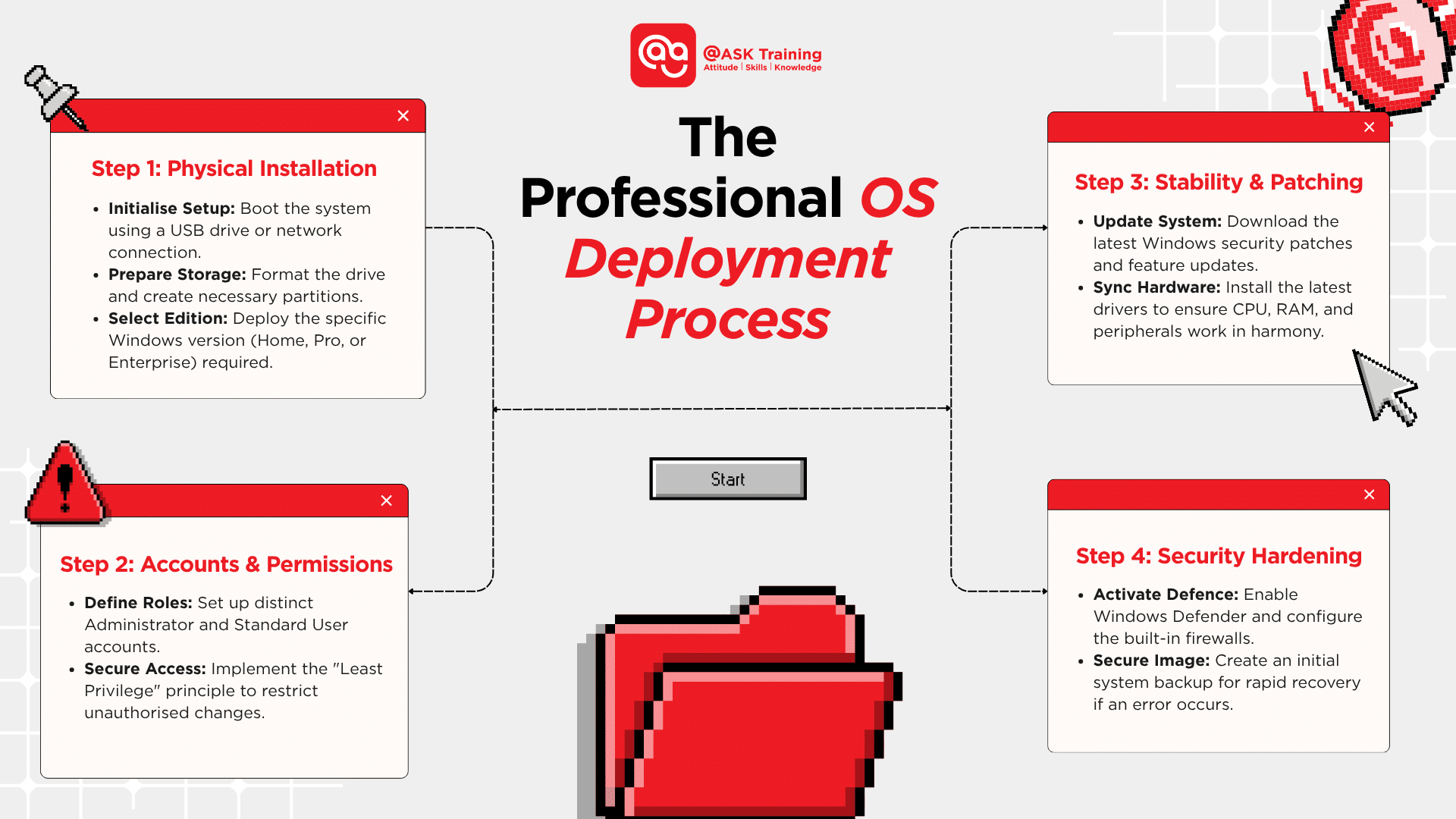
Here’s a breakdown of the essential steps for a professional deployment:
Phase 1: Step-by-Step Physical Installation
- Boot from Installation Media: Use a USB drive or network boot to initiate the setup.
- Disk Partitioning: Select and format the correct storage drive to host the OS.
- Edition Selection: Choose the appropriate Windows OS version (Home, Pro, or Enterprise) based on organisational requirements.
Phase 2: User Accounts and Permissions
- Account Creation: Set up Administrator and Standard User roles to maintain a clear boundary of control.
- Permissions Management: Assign access levels based on the principle of least privilege to prevent unauthorised system changes.
Phase 3: System Stability and Patch Management
- Windows Updates: Immediately download and install the latest feature updates and security patches.
- Driver Installation: Update hardware drivers to ensure the CPU, memory, and peripherals communicate without errors.
Phase 4: Security Hardening
- Security Configuration: Enable Windows Defender and configure built-in firewalls to protect against external threats.
- Backup Strategy: Implement an initial system image backup to allow for quick recovery if a critical error occurs during setup.
Mastering these manual steps on physical hardware gives you the confidence to handle any workstation deployment.
However, in a professional setting, you won’t always have a physical spare machine lying around to test a new patch or a risky configuration.
This is where moving from physical hardware to software-defined environments becomes a game-changer for your workflow.
Virtualisation Fundamentals for Modern IT Support
In a modern workspace, a single physical computer can behave like several independent machines.
This is the core of virtualisation, which allows multiple virtual machines, also known as “Guest” operating systems, to run on a single physical machine, also known as “Host”.
For an IT professional, this is the ultimate safety net and testing ground.
Mastering virtualisation training involves understanding these key components:
1. The Concept and Benefits
Virtualisation creates an abstraction layer between hardware and software, allowing you to maximise resource utilisation and run legacy applications on modern hardware without conflict.
2. Setting Up the Environment
You will learn to use Hypervisors like VMware or VirtualBox to create and manage these virtual environments. These platforms allow you to define how much CPU, RAM, and storage each virtual machine (VM) can use.
3. OS Installation with VMs
The process of installing and configuring operating systems inside a VM mirrors a physical install but offers the ability to use snapshots. This means you can save the state of a system and instantly revert to it if a configuration goes wrong.
4. Enhanced Troubleshooting
These skills provide immense flexibility, allowing you to reproduce user errors in a controlled “sandbox” environment without risking the company’s live production data.
Developing these skills moves you beyond basic hardware maintenance and into the realm of advanced systems administration.
It transforms how you approach complex technical hurdles by giving you the freedom to experiment and fail safely.
While virtual environments provide the perfect laboratory for testing, your real-world impact is measured by how you support the people using these systems every day.
Desktop Support Best Practices Every Technician Should Master
Technical expertise is only half the battle; how you apply that knowledge to solve user problems defines your professional reputation.
A desktop support technician acts as the primary point of contact for an organisation’s technology needs, ensuring the hardware and software function seamlessly for every employee.
To move from being a “fixer” to a “specialist”, you should adopt these industry-standard best practices:
1. Structured Troubleshooting
- Always follow a logical path. Identify the problem, establish a theory of probable cause, test your theory, and plan the fix based on CompTIA A+ troubleshooting methodology.
- This methodical approach prevents “trial-and-error” fixes that can lead to further system instability.
2. Mastery of Remote Support
- Modern IT support often happens through a screen rather than in person.
- You must become proficient with remote support tools and methods to diagnose and resolve issues for off-site or hybrid employees efficiently.
3. Proactive Communication
- Technical jargon can alienate users.
- Using clear, empathetic communication helps manage expectations, reduces user frustration, and ultimately improves overall end-user satisfaction and productivity.
Visualising the Logic: The Troubleshooting Flow
The best way to understand structured troubleshooting is through the “Lamp Chart” logic.
It demonstrates how to break a complex problem into logical, binary steps to find a solution without wasting time.
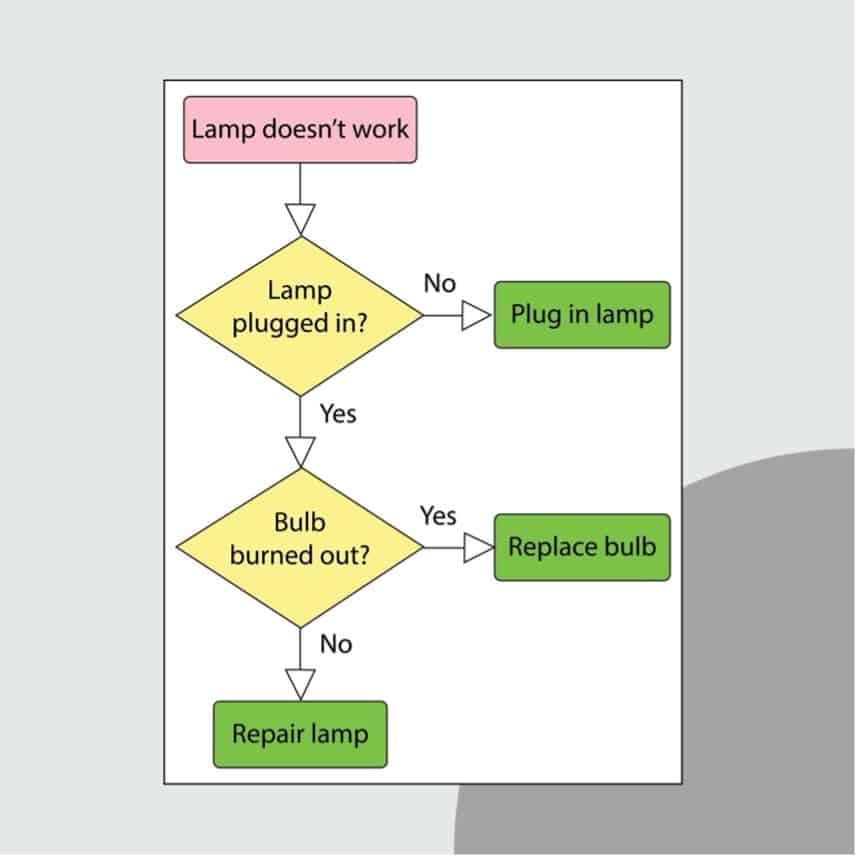
Here is how you apply this flow to your daily IT support technician skills:
Step 1: The Initial Observation (Is the lamp plugged in?)
Always start with the physical layer. Before reconfiguring a Windows OS, check if the hardware is powered and the cables are secure.
Step 2: The Logical Pivot (Is the bulb burnt out?)
If the power is fine, move to the component level. In an OS context, this means checking if a specific service is stopped or if a driver is corrupted before deciding to reinstall the entire system.
Step 3: The Final Resolution
Once the root cause is found, you execute the fix, whether that is patch management, adjusting user permissions, or performing a system recovery.
By blending these “soft” skills with your technical foundation, you ensure that technology remains an enabler rather than a barrier.
This balance is what separates a great technician from a good one.
While resolving immediate user issues is vital, your next priority is ensuring those systems stay optimised and secure over the long term.
Maintenance, Performance Optimisation, and Disk Management
A high-performing system doesn’t just happen by accident; it requires consistent, proactive care to prevent slowdowns and hardware failure.
Beyond the initial setup, your role involves performing routine OS maintenance tasks to ensure that every machine under your care remains responsive and reliable.
To keep systems running at peak efficiency, you must master these core optimisation strategies:
1. Effective Disk Management
You will learn to use disk management strategies to initialise new drives, manage partitions, and extend volumes to prevent “disk full” errors that disrupt user workflows.
2. System Performance Monitoring
By using tools like Task Manager and Resource Monitor, you can identify inefficiencies in CPU, memory, and disk usage before they lead to a complete system hang.
3. Performance Troubleshooting
You must be able to troubleshoot performance-related issues systematically, identifying whether a slowdown is caused by a fragmented drive, a memory leak, or an unnecessary startup application.
4. Proactive Optimisation
Regularly clearing temporary files, managing system cache, and ensuring that the OS is optimised for the specific hardware it runs on are essential operating system basics.
By using diagnostic tools, you can also anticipate hardware failures, for example, detecting storage device wear and tear through S.M.A.R.T. (Self-Monitoring, Analysis, and Reporting Technology).
By staying on top of these maintenance cycles, you reduce the number of emergency “my computer is slow” tickets and ensure a smoother experience for all users.
However, keeping a system fast is only half the battle; keeping it safe is the ultimate priority.
This brings us to the final technical layer: protecting the system and the sensitive data it holds from external threats.
Security, Data Backup, and System Protection
A fast system is useless if it isn’t secure. As a technician, you are the first line of defence against security threats that target Windows OS, ranging from malware and ransomware to unauthorised access.
Protecting organisational data is your highest priority, as a single breach can disrupt an entire business.
To build a “fortress” around your systems, you must master these critical protection layers:
1. Threat Identification
You need to recognise common vulnerabilities, such as phishing attempts, malicious scripts, and unpatched software, that specifically affect the Windows ecosystem.
2. Security Configuration
Mastering IT support technician skills means knowing how to properly configure Windows Defender, manage built-in firewalls, and adjust security settings to block unauthorised network traffic.
3. Data Backup Strategies
You must implement structured data backup routines, such as the 3-2-1 rule, to ensure that even if a system is compromised, the data remains safe and accessible.
4. System Recovery
Beyond just backing up files, you should be proficient in recovery strategies, including creating system restore points and full-disk images for rapid restoration after a critical failure.
By integrating these security habits into your daily workflow, you move from simply “fixing computers” to actively safeguarding the company’s digital assets.
This high-level responsibility is what distinguishes a professional technician in the modern workplace.
While these technical skills are vital, the fastest way to master them is through a structured, hands-on environment where you can practice without risk.
Accelerate Your IT Career with Structured, SkillsFuture-Funded Training
Building a career in technology requires more than just reading manuals; it requires getting your hands dirty with the actual software you’ll be managing.
If you are looking for a comprehensive operating systems course in Singapore, our 2-Day Operating Systems and Desktop Support course at @ASK Training is designed to move you from theory to professional practice in just a few days.
Our training stands out by offering a focused, high-impact environment:
- Immersive 2-Day Format: We utilise a face-to-face classroom format to ensure you get immediate feedback from industry experts, which allows you to master complex concepts without the distractions of self-study.
- Hands-on Technical Labs: You won’t just watch a presentation. The curriculum is packed with hands-on installation and virtualisation activities, where you will practice setting up Windows environments and navigating virtual machines using platforms like VMware or VirtualBox.
- Significant Funding Support: As a recognised SkillsFuture IT course, eligible participants can benefit from funding support of up to 90%, making this high-level training accessible to everyone.
- Recognised Certification: Upon successful completion, you will receive a SkillsFuture Statement of Attainment (SOA), a recognised credential that proves your proficiency to future employers.
Whether you are an absolute beginner, a career switcher looking for a fresh start, or existing IT support staff aiming to sharpen your foundational knowledge, this pathway provides the practical tools you need to succeed in the local tech landscape.
Wrapping Up
Mastering operating systems is the single most important step you can take to ensure your success in IT support.
It is the foundation upon which all other technical skills are built, from networking to cybersecurity.
While the internet is full of tutorials, nothing replaces the confidence gained through structured, hands-on learning.
Immersive training allows you to make mistakes, ask questions, and see the results of your work in a controlled environment.
Key Takeaways:
- The OS is the Core: You cannot support hardware or software effectively without understanding the operating systems basics that connect them.
- Virtualisation is Essential: Modern technicians must know how to use virtualisation training to create safe testing “sandboxes.”
- Troubleshooting is Logical: Success in desktop support comes from following a structured, step-by-step logic; not guesswork.
- Certification Matters: A SkillsFuture IT course not only builds your skills but also provides the SOA certification to prove it to employers.
If you’re ready to transform your technical curiosity into a professional career, now is the time to take that next step!
Enrol with us and gain the OS mastery that will set you apart in the competitive tech industry!
Related Courses
- Operating Systems and Desktop Support
- Introduction to Information Technology (IT)
- Understanding Computer Hardware Peripherals
◆◆◆